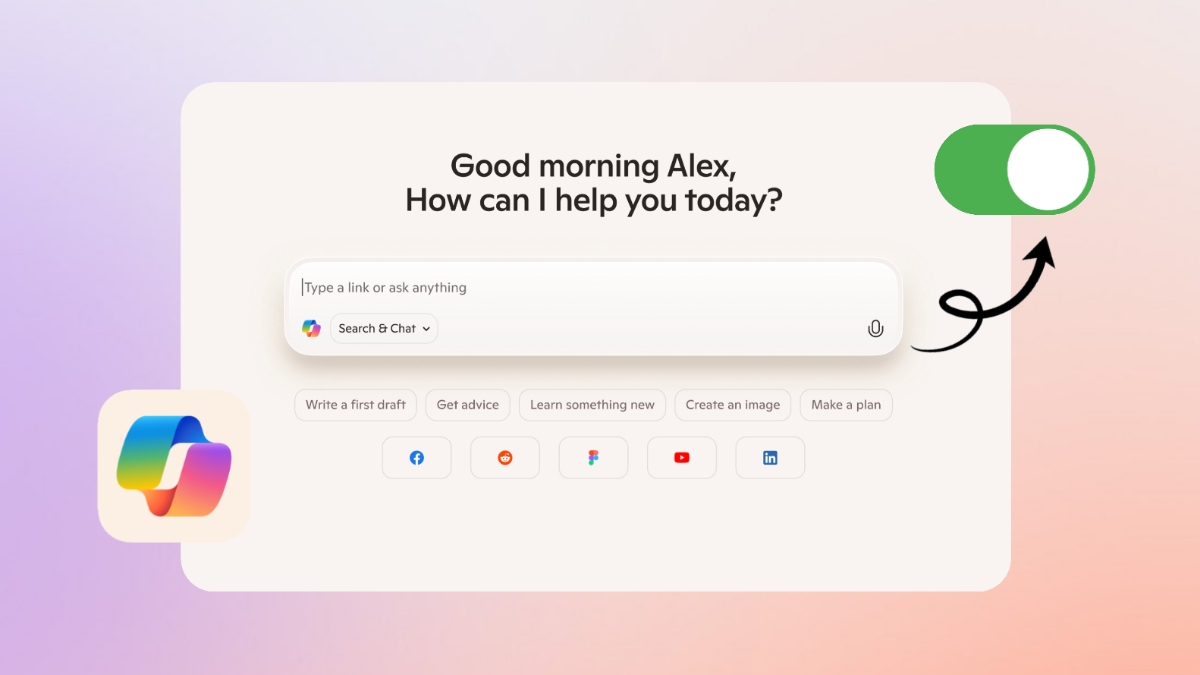
Microsoft added Copilot as a built-in AI assistant. It works across Windows, Edge, Bing, and apps. Some users find it distracting and always visible.
Privacy concerns also make users want less tracking. Therefore, Turning Off Copilot AI from Microsoft Edge becomes important.
Key Takeaways:
- You cannot fully remove Copilot in most cases.
- You can hide Copilot from Edge and Windows.
- You can limit data tracking and personalization features.
Turn Off Copilot AI on Microsoft Edge Through Settings
Open the Microsoft Edge browser on your device first. Hit a press on the 3 dots menu that you can spot on the top right corner. Select Settings from the dropdown menu options list. Click the Sidebar option from the left panel menu.
Find Copilot under the app and notification settings section. Turn off the Show Copilot toggle switch to disable it. This hides Copilot from the sidebar completely now.
To reduce Bing suggestions, open the Bing homepage directly. Click the menu icon shown on the page. Go to Settings and then choose More options.
Disable the ” See search suggestions as you type option. This reduces AI prompts while typing search queries.
Advanced users can use the Registry Editor for deeper control. You can also switch to another search engine easily.
Turn Off on Windows
Copilot is deeply integrated into the Windows 11 system. Full removal is only possible for enterprise users. Others can only reduce features and visibility easily.
Open Settings and go to the Personalization section menu. Click the Taskbar and find the Copilot toggle option. Turn off this toggle to hide the Copilot button. Restart your computer after applying these settings properly.
Many apps also include Copilot inside their interface. Head over to the app settings and then disable AI features yourself. Repeat steps for each app using Copilot functions.
For Microsoft 365 apps, open Word or Excel. Go to File, then Options, then Copilot settings. Uncheck the Enable Copilot option to disable assistant features.
If the option is missing, change privacy settings instead. Turn off connected experiences that analyze your content.
Data Tracking
Copilot collects data for training and personalization purposes. This includes text, voice, and activity information data.
Open the Copilot web app and go to account settings. Select the Privacy option from your profile menu section.
Turn off model training on text and voice inputs. Disable personalization and memory features from the settings page. Select Delete memory to remove saved information instantly.
You can also delete full activity history records easily. Remove Copilot data from apps, Windows, and services.
Disable connectors like OneDrive, Outlook, Gmail, and Google Drive. These connectors share your data across different platforms.
Gaming Copilot also collects interaction data during gameplay. You can disable model training inside Game Bar settings. Avoid using it if you care about privacy deeply.
The End Note
Turning off Copilot AI from Microsoft Edge helps protect your personal data better. Full removal is not possible for most users today.
However, many settings allow better control and privacy. Disable features, hide icons, and limit data sharing.
For the latest tech news, follow Hogatoga on Twitter, Facebook, and Google News. For the latest tech-related videos, subscribe to our YouTube Channel and Newsletter.