Many people want mobile apps on bigger screens daily. Phones feel limited for multitasking and long-term use. Windows 11 gives the chance to use Android apps smoothly.
Still, the Play Store is not available by default. Users need simple steps to unlock the full app experience by installing the Google Play Store on Windows 11.
Key Takeaways:
- You need a proper system setup before the installation process.
- The PowerShell tool helps install the Play Store easily.
- Google app adds smart AI search features later.
Install Google Play Store on Windows 11: The Requirements
First, check your Windows 11 system compatibility carefully. Your PC must support Android apps using a virtual environment.
Install all pending Windows updates before starting the process. Open settings and update the system for the best performance results.
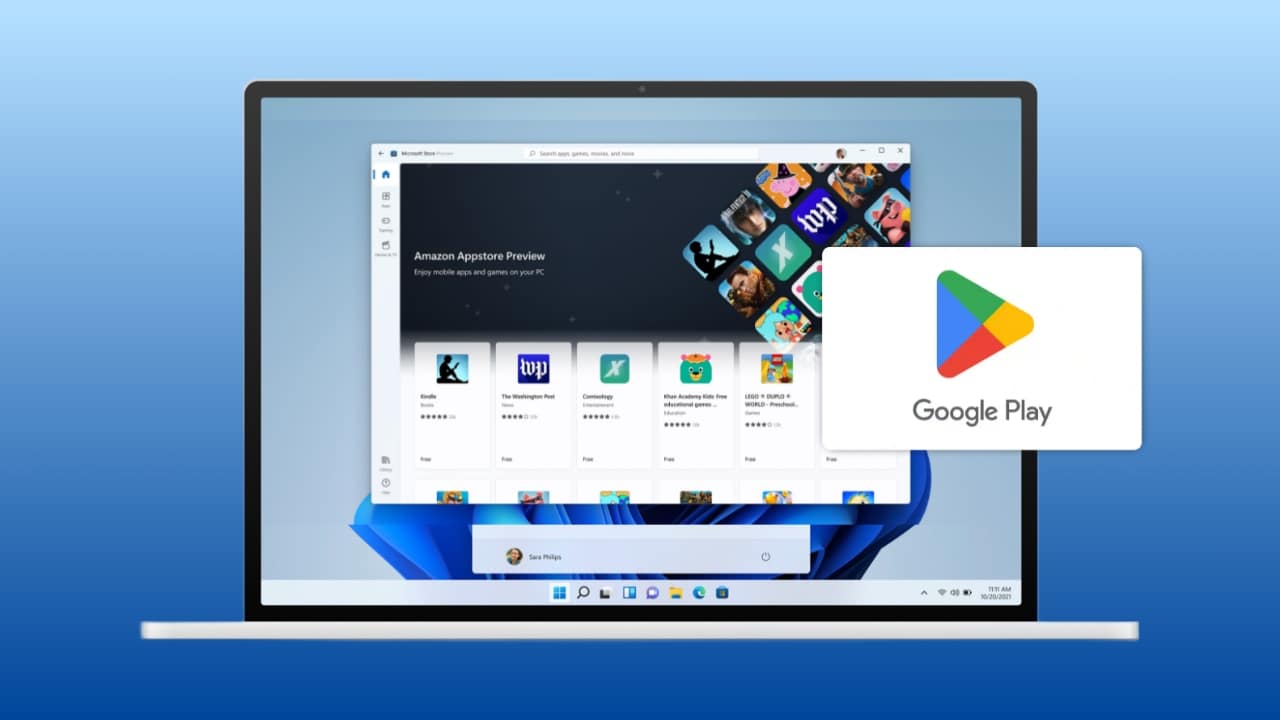
Next, install the Amazon Appstore from the Microsoft Store application. Search the Amazon Appstore and download it if it’s missing.
Some regions require switching to the United States settings. This allows Android apps to support your Windows device.
Now enable hardware virtualization on your computer system. Open Task Manager and check the Performance tab status.
Ensure virtualization is enabled for proper system support. If disabled, enable Intel VT-X inside BIOS settings. AMD users should enable AMD-V from the firmware menu.
Also, update Microsoft Store apps from the Library section page. Restart your computer after completing all setup steps.
Steps to Install the Play Store
Start installation using the PowerShell toolbox method tool carefully. This tool downloads scripts and installs required components automatically. Open the GitHub page and copy the provided easy command code.
Next, open PowerShell as administrator from the Start menu. Paste the copied command and press Enter to run. Wait a few seconds until the Windows Toolbox window appears.
Steps in Bullet Points
- Find the ” Install Google Play Store for Windows 11 option.
- Click the option and follow the installation instructions carefully.
- Enable the virtual machine platform when the system asks for permission.
- Type Yes and press Enter to continue the process.
- Replace the Windows Subsystem for Android with a new version.
- Press the P key to confirm the installation step process.
- Download the subsystem file using the generated link provided.
- Save the ZIP file to your computer storage folder.
- Copy the file path using the Explorer copy path feature.
- Paste the path into PowerShell when the system asks for the location.
- The old subsystem is removed, and the new version is installed automatically.
- Keep the settings window open until the process completes fully.
- Google Play Store appears in the Start menu after completion.
- Sign in using a Google account to begin usage.
- Download apps, games, books, and movies easily.
Google App Features
Sometimes, the Play Store issues appear after system updates. Repeat the installation steps to fix those problems quickly.
You can also install Google desktop apps easily. Grab the installer and run the installer file, and complete the setup with simple steps.
Enable the Drive toggle to access cloud files easily. Enable the local files toggle for better search results. Click the Done button to finish the installation process fully.
Use Alt plus Space shortcut to open the search box. Search web, apps, and files from one place easily. Gemini AI improves search with smart answers quickly. Google Lens helps with image search and translations.
Screen sharing allows asking questions about the current content. The interface feels similar to the Google mobile search experience.
The End Note
By installing the Google Play Store on Windows 11, you can run Android apps directly on your computer. Keep the system updated and virtualization enabled properly. The Google app also adds smart AI search feature support.
For the latest tech news, follow Hogatoga on Twitter, Facebook, and Google News. For the latest tech-related videos, subscribe to our YouTube Channel and Newsletter.