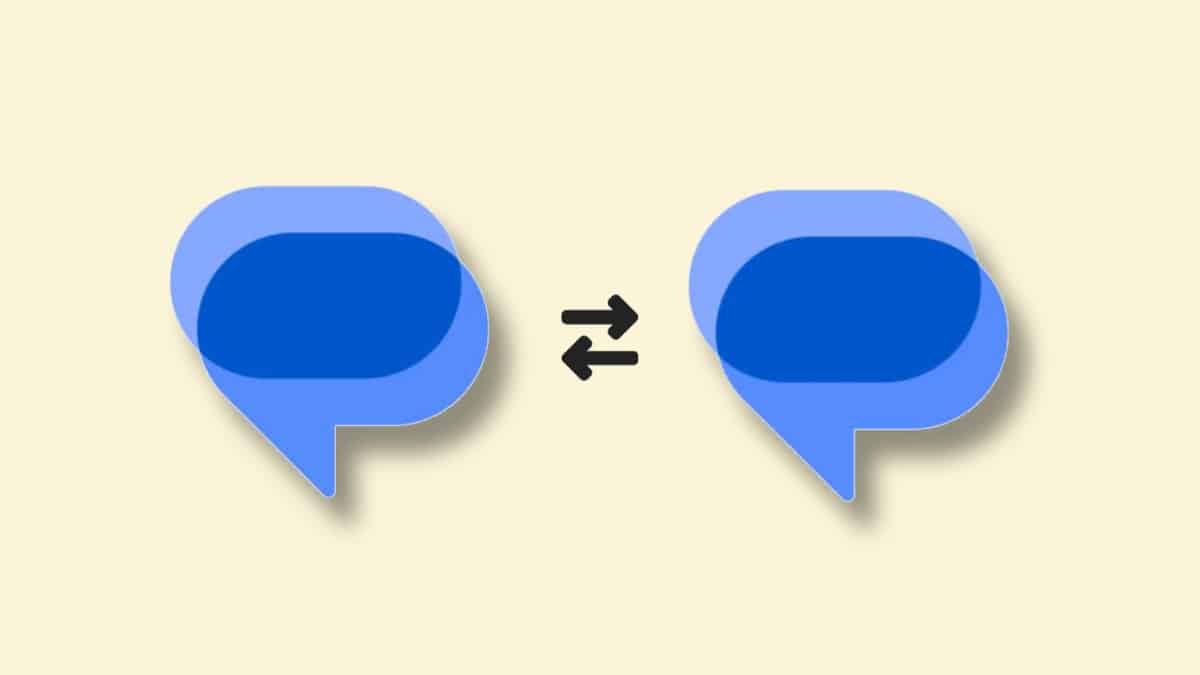
Many people upgrade phones and want their old messages. Messages include chats, details, and important personal data.
Losing them can create stress and communication problems. Thankfully, many simple methods help move sms messages easily.
Key Takeaways:
- The backup method is safest and easiest for users.
- Apps like Smart Switch give faster transfer options.
- Quick Share helps send single messages quickly.
Transfer Text Messages (SMS) from Android to Android Using Google Backup
This method uses your Google account for safe storage. It works well for Google Messages and other apps. You must back up data before restoring it on the new phone.
Follow these steps on your old Android phone:
- Open the Settings app on your phone.
- Scroll down and tap the Google option shown.
- Tap All services or the Manage backup section.
- Turn on Backup by Google One option.
- Ensure SMS and MMS messages are included.
- Tap Back up now to save messages.
Now restore messages on your new Android phone:
- Turn on your new Android phone device.
- Sign in using the same Google account details.
- During setup, choose the Restore data option.
- Wait until the setup process completes fully.
- Open the Messages app and check your chats.
Using Apps
Apps make transferring text messages to Android faster and sometimes more flexible. Samsung users can use the Smart Switch application easily.
Follow these steps for the Samsung Smart Switch method:
- Install the Smart Switch app from the Play Store.
- Open the app and select the transfer method option.
- Choose a wired or wireless connection method.
- Connect both devices using a cable or Wi-Fi.
- Tap the Send data or Receive data option.
- Select Galaxy or Android as the source device.
- Choose Custom and select the Messages option.
- Tap Transfer and wait for completion.
- Review messages and tap Done to finish.
Smart Switch supports Samsung to Android transfers only. It does not work for non-Samsung devices.
Another option is the Google Messages pairing feature. This method connects devices using QR code scanning.
Follow these steps for the pairing method:
- Open the Google Messages app on the old device.
- Tap the profile icon and select Device Pairing.
- Choose Switch to QR pairing option.
- Open the Messages app on a new Android phone.
- Select Pair with QR code option.
- Scan the QR code using an old device camera.
- Messages will sync between both devices.
Using Quick Share
This method is useful for sending single messages only. It uses Bluetooth to share messages between devices.
Follow these simple steps carefully:
- Open the Messages app on your Android device.
- Find a message and long-press it.
- Tap the Share icon shown on the screen.
- Select Quick Share from the options list.
- Choose a nearby device from the list shown.
- Accept requests on the receiving device quickly.
This method works without an internet connection easily. It is best for small message transfers only.
The End Note
Always check backups before transferring SMS messages from Android to Android. You have many methods depending on your needs.
Backing up is always useful as it keeps your messages safe on new devices.
For the latest tech news, follow Hogatoga on Twitter, Facebook, and Google News. For the latest tech-related videos, subscribe to our YouTube Channel and Newsletter.