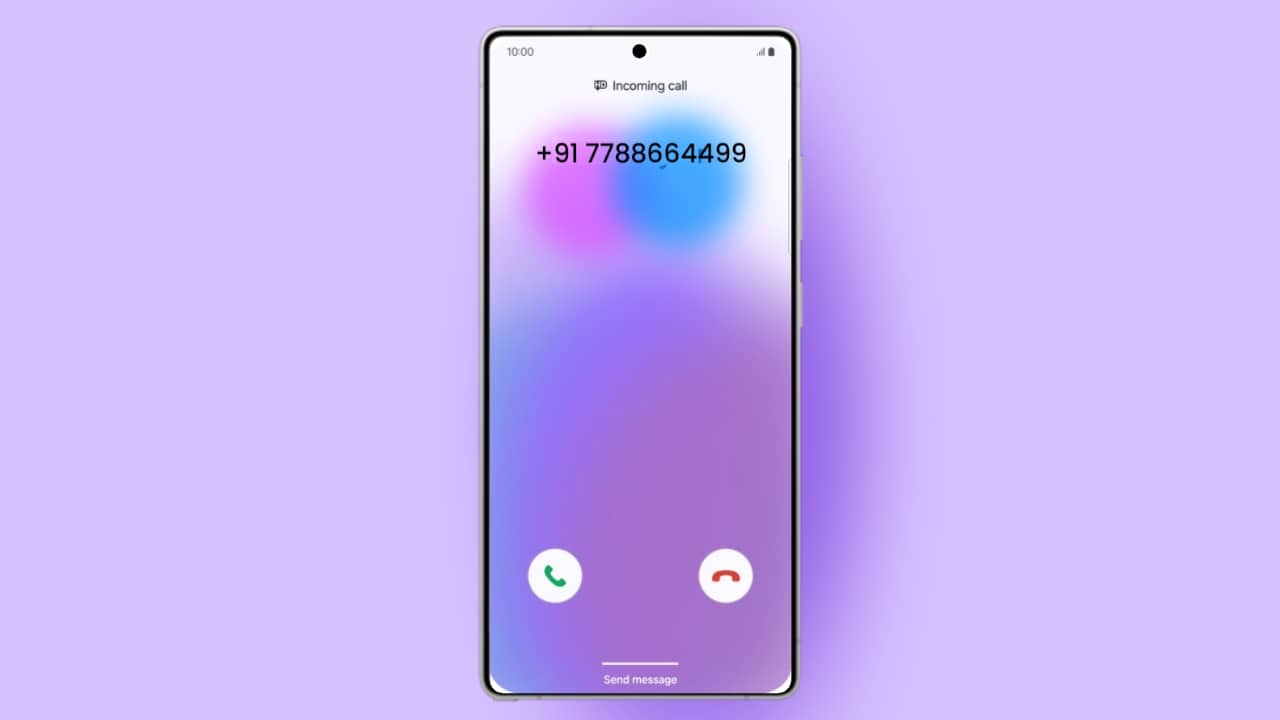
Android phones not Showing Contact Names in Incoming Calls frustrates many users worldwide. Sometimes, apps lose permissions or syncing stops unexpectedly. Temporary files and software bugs are becoming a barrier to calling.
Key Takeaways:
- Clearing cache files fixes many calling display problems.
- Contact permissions help phones display saved caller names.
- Updating apps removes bugs, which can sometimes cause contact issues.
How to Fix Contact Names Not Showing in Incoming Calls on Android
Temporary cache files sometimes severely affect incoming call details. Clearing the app cache helps refresh important application functions properly.
Clear the cache of the phone app
Follow these simple steps carefully below:
- Open Settings on your Samsung smartphone.
- Tap Apps or Apps & Notifications option.
- Select See All Apps from the displayed list.
- Find and open the Phone app.
- Tap Storage or Storage & Cache section.
- Press Clear Cache to remove temporary files.
Restart your phone after clearing cache files completely.
Clear the cache of the Message App
Message app problems also affect saved contact information sometimes. Clearing the Message app cache helps restore missing contact names.
Follow these simple instructions carefully:
- Open Settings from your application screen.
- Tap Apps and select See All Apps.
- Locate the Message app carefully below.
- Tap Force Stop and confirm action.
- Open the Storage & Cache section afterward.
- Tap Clear Cache and Clear Storage.
Check incoming calls after completing these simple steps properly.
Check Important Settings
Wrong settings often stop contact names from appearing correctly.
Allow Contact Permission for Phone App
Phone apps need contact access to show saved names. Disabled permissions prevent proper caller identification during incoming calls.
Enable contact permission using these steps:
- Press and hold the Phone app.
- Tap App Info from the displayed options.
- Open the Permissions section carefully.
- Select Contacts from the available permissions list.
- Tap Allow to enable contact access.
Saved caller names should appear after enabling permissions properly.
Turn On Caller Identification Feature
Caller identification helps phones display caller information correctly. Disabled caller identification may create contact display problems sometimes.
Enable this feature using these instructions:
- Open the Phone app first.
- Tap the three-dot menu icon.
- Open Settings from the available options carefully.
- Find Caller Identification settings below.
- Turn on this feature immediately.
Some Samsung phones also support network-based caller identification settings.
Turn Off Hide Contacts Without Numbers
Android updates sometimes activate hidden contact settings automatically. This option may hide saved contacts from display screens.
Disable this setting using these steps:
- Open the Phone app settings carefully.
- Find Hide Contacts Without Numbers option.
- Check the toggle beside this setting.
- Turn off the enabled switch immediately.
Saved contact names should become visible after disabling this option.
Disable AT&T Call Protect Feature
AT&T Call Protect sometimes blocks saved caller names unexpectedly. Disabling this feature helps restore caller details properly again.
Follow these simple steps below:
- Open the AT&T folder on the phone.
- Locate the AT&T Call Protect application carefully.
- Press and hold the application icon.
- Tap Disable from the displayed menu options.
Check incoming calls after disabling this feature completely.
Update and Sync Device
Outdated software and syncing issues affect contact information frequently. Updating applications improves overall Android calling performance greatly.
Update the Phone App
Old Phone app versions may contain annoying software bugs.
Update the app using these steps:
- Open the Google Play Store application.
- Tap your profile icon above.
- Select the ” Manage Apps & Devices ” option.
- Open the available updates section carefully.
- Find the Phone app from the update list.
- Tap Update beside the application.
Restart your phone after updating applications successfully.
Enable Contact Sync
Disabled syncing stops contacts from updating across connected devices properly. Contact syncing keeps saved numbers updated continuously everywhere.
Enable syncing using these instructions carefully:
- Open Settings on your Samsung device.
- Tap Accounts or Passwords & Accounts.
- Select your Google account carefully.
- Open Account Sync settings below.
- Enable the Contacts sync toggle immediately.
This process helps phones recognize saved contacts correctly.
Install Android System Updates
Older Android versions may contain software-related calling bugs.
Follow these steps carefully below:
- Open the Settings application on your phone.
- Scroll down to the System section carefully.
- Tap the System Update option below.
- Check available updates immediately afterward.
- Download and install pending updates properly.
Restart your device after completing the update installation successfully.
Delete and Re-Add Contact
Incorrect formatting sometimes affects only one saved contact number. Re-adding contacts usually fixes these display problems quickly.
Follow these simple steps below:
- Open the Contacts application carefully.
- Find a problematic contact from the saved list.
- Tap the three-dot menu beside the contact.
- Select Delete and confirm the action.
- Tap the plus icon to add a contact.
- Enter the correct number and country code.
- Save the contact carefully afterward.
The End Note
Such contact names not showing issues in calling frustrate us, but luckily, if you apply these fixes, you will get rid of contact display problems.
Following these methods, users can fix contact names not showing in incoming calls on Android, which significantly improves Android calling performance.
For the latest tech news, follow Hogatoga on Twitter, Facebook, and Google News. For the latest tech-related videos, subscribe to our YouTube Channel and Newsletter.