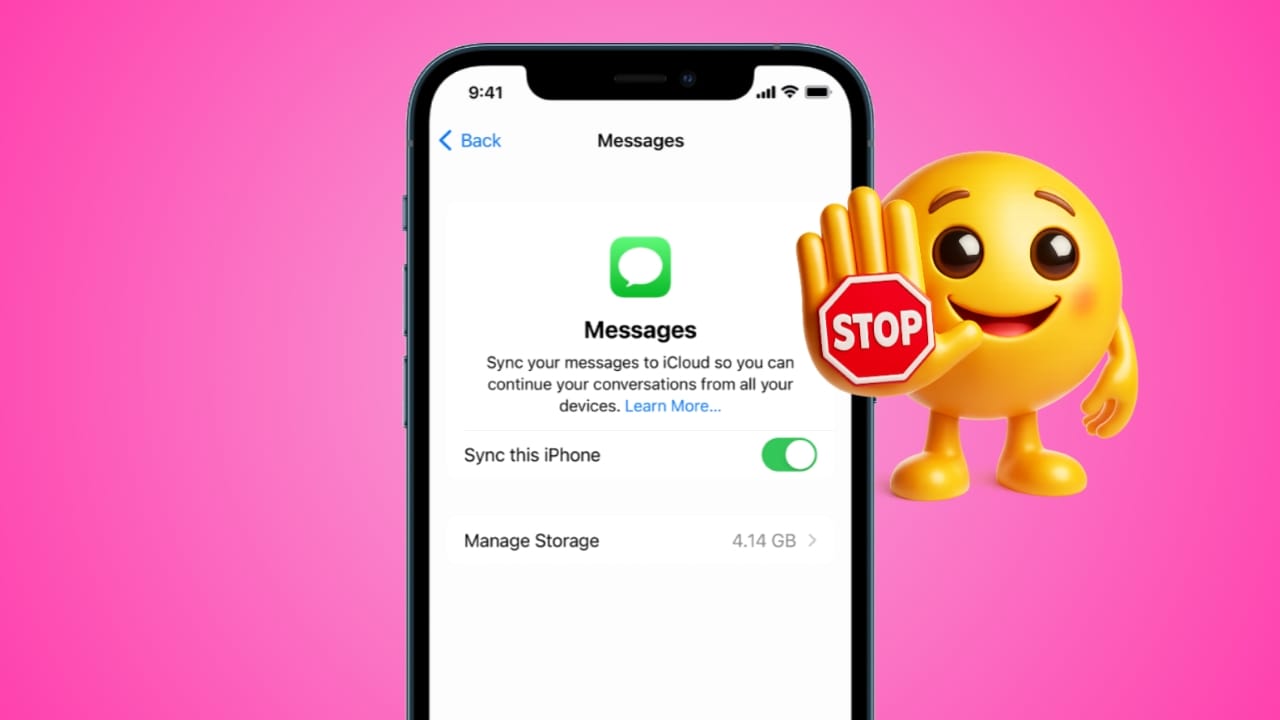
Apple devices share messages using the same Apple ID. Messages appear across iPhone, iPad, Mac, and Apple Watch. This happens because iCloud keeps conversations updated everywhere.
However, constant alerts may disturb work or relaxation. Shared Apple IDs may also reduce personal privacy. Fortunately, Apple provides easy options for controlling message syncing.
Key Takeaways:
- You can stop iMessages syncing across Apple devices.
- Disable iMessage settings on iPhone, iPad, or Mac.
- Manage notifications if you still want messages.
Stop iMessage From Syncing Across Apple Devices Easily
Apple connects devices through a single Apple ID. iCloud keeps conversations updated across every signed device. Messages sent from an iPhone quickly appear on an iPad. The same conversation also appears on Mac computers.
Apple Watch mirrors message notifications from your iPhone. This system helps continue chats across different devices. However, constant alerts sometimes interrupt focus or meetings. Notifications may appear during movies or important work.
Some people share Apple IDs with family members. Shared accounts sometimes create privacy concerns for messages. Another problem is unexpected iMessage sign-out situations. Messages may change from blue bubbles to green.
Green bubbles mean messages are normal SMS texts. This happens when iMessage temporarily disconnects from servers. Sending or receiving messages may stop until reconnecting. Fortunately, several simple fixes help control message syncing.
On iPad and iPhone
Disabling iMessage directly prevents messages from appearing on the iPad.
Follow these steps on the iPad:
- Open Settings on your iPad device.
- Scroll down and tap the Messages option.
- Find the iMessage switch inside settings.
- Turn the switch off completely.
Messages from your iPhone stop appearing on your iPad.
Follow these steps carefully on your iPhone to turn it off directly:
- Open the Settings application on the iPhone.
- Tap Messages inside the settings menu.
- Turn the iMessage toggle switch off.
- Return and open the FaceTime settings page.
- Turn the FaceTime toggle off, too.
Restarting both services refreshes connections sometimes.
Follow this simple reset process:
- Open Settings and disable iMessage first.
- Open FaceTime and switch it off.
- Restart your device after disabling services.
- Enable both services again after a restart.
Sometimes Apple services face temporary system outages. If servers show issues on the System Status page, simply wait patiently. Services normally return once Apple resolves the problem.
Internet connection also affects message syncing performance.
Try these simple network improvement tips:
- Move closer to your Wi-Fi router.
- Keep the router away from microwave interference devices.
- Place the router in higher open locations.
You can test internet speed using the Fast.com website. Another option is the Ookla Speedtest tool.
If connection problems continue, restart the modem equipment.
Follow this simple modem restart process:
- Turn off your phone or tablet device.
- Unplug the modem and Wi-Fi router power cables.
- Wait about thirty seconds before reconnecting.
- Plug devices back in and wait for the lights.
- Turn the device back on afterward.
Low storage space sometimes causes unexpected system issues.
Check storage using these steps:
- Open Settings on the device.
- Tap the General option inside settings.
- Select Device Storage to view space.
Delete unused apps, videos, or large files. Incorrect date settings may also affect services.
Fix time settings using these steps:
- Open Settings on your device.
- Tap General inside the menu.
- Select the Date and Time option.
- Enable Set Automatically for accuracy.
If already enabled, toggle it off, then on.
You can also reset network settings completely. This removes saved Wi-Fi networks and reconnects. You must enter Wi-Fi passwords again afterward.
If you cannot access an old device anymore, visit Apple’s official iMessage deregistration webpage online. Enter the phone number connected with iMessage.
Apple sends a confirmation code through SMS. Enter that code on the webpage carefully.
On Mac And Watch
Mac computers sync messages using the same Apple ID. Desktop alerts sometimes interrupt work or meetings.
Sign Out of iMessage on Mac
Follow these steps carefully:
- Open the Messages app on Mac.
- Click Messages in the top menu bar.
- Choose Preferences from the dropdown list.
- Open the iMessage tab inside settings.
- Click Sign Out to stop syncing.
Messages will no longer appear on the Mac.
Turn Off Notifications Only
Some users want messages without notification alerts.
Follow these simple steps:
- Click the Apple Menu icon.
- Open System Settings or System Preferences.
- Select Notifications from the options list.
- Choose Messages from notification apps.
- Turn off the Allow Notifications switch.
Messages remain inside the app without alerts.
Manage Message Alerts On Apple Watch
Apple Watch mirrors iPhone message notifications automatically. You cannot sign out of iMessage directly there. However, you can control alerts from the iPhone.
Follow these steps using the Watch app:
- Open the Watch app on iPhone.
- Tap the My Watch section first.
- Select Messages from available options.
- Choose Custom notification settings.
- Turn off the Show Alerts option.
You can also mute alerts directly on your watch. Swipe left on the notification and choose the mute option.
The End Note
Apple designed iMessage to work across many devices. This feature helps continue conversations across Apple products. However, frequent alerts may disturb daily activities.
Disabling iMessage on devices quickly stops message syncing. Checking the internet, storage, and settings prevents future issues.
For the latest tech news, follow Hogatoga on Twitter, Facebook, and Google News For the latest tech-related videos, Subscribe to our YouTube Channel and Newsletter.