
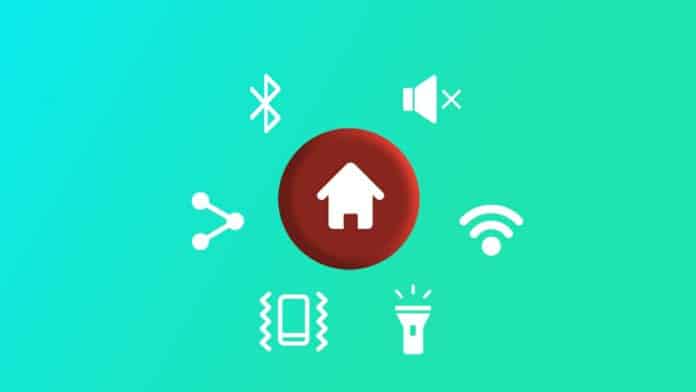
You must be using so many apps on your phone. You have to close one app and then use another app. It will take so many times and you must want to quickly access any app on your phone.
But you don’t know how to quickly access any app on your phone. Also, you must want to lock to secure your phone. Today I am explaining to you about the set action button to quickly access the app. Read this post till the end to know more about this.
Also, Read Access anything from your phone with a dual tap.
Multi-action Home Button
Multi-action Home Button is one of the best apps that allows you to set the many actions in the button and quickly access anything. Also, you can invisible the button.
Features
- Invisible floating button
- One-click action
- Set the button position
- Double click on click
- Long click action
Also, Read Set the sidebar screen action.
How can you use the Multi-action Home Button app on your phone?
Make sure you have already the Multi-action Home Button app on your phone, if you don’t have one, you must download this app. Now how can you download this app on your phone?
Go to the end of the post where you will find the download button. Press the download button to download and install the app on your phone. Open the app after installing and tap on the ok button to grant the drawover permission to this app.
Also, Read Best Gestures, Notifications & more useful settings app.
The floating button will show on your after granting permission to this app. You have to select the action in one click, double click, and long click. All the action will perform what you select on the click in the app.
You can also change the color of the button, and adjust the button width and button height. Also, set the button with the keyboard. Set the vibration strength and vibration.
For the latest tech news, follow Hogatoga on Twitter, Facebook, and Google News For the latest videos tech-related, Subscribe to our YouTube channel and Newsletter.














Mera mobael ka sound bdhana hai